
Affiliate disclosure: this article contains paid links. As an Amazon Associate I earn from qualifying purchases.
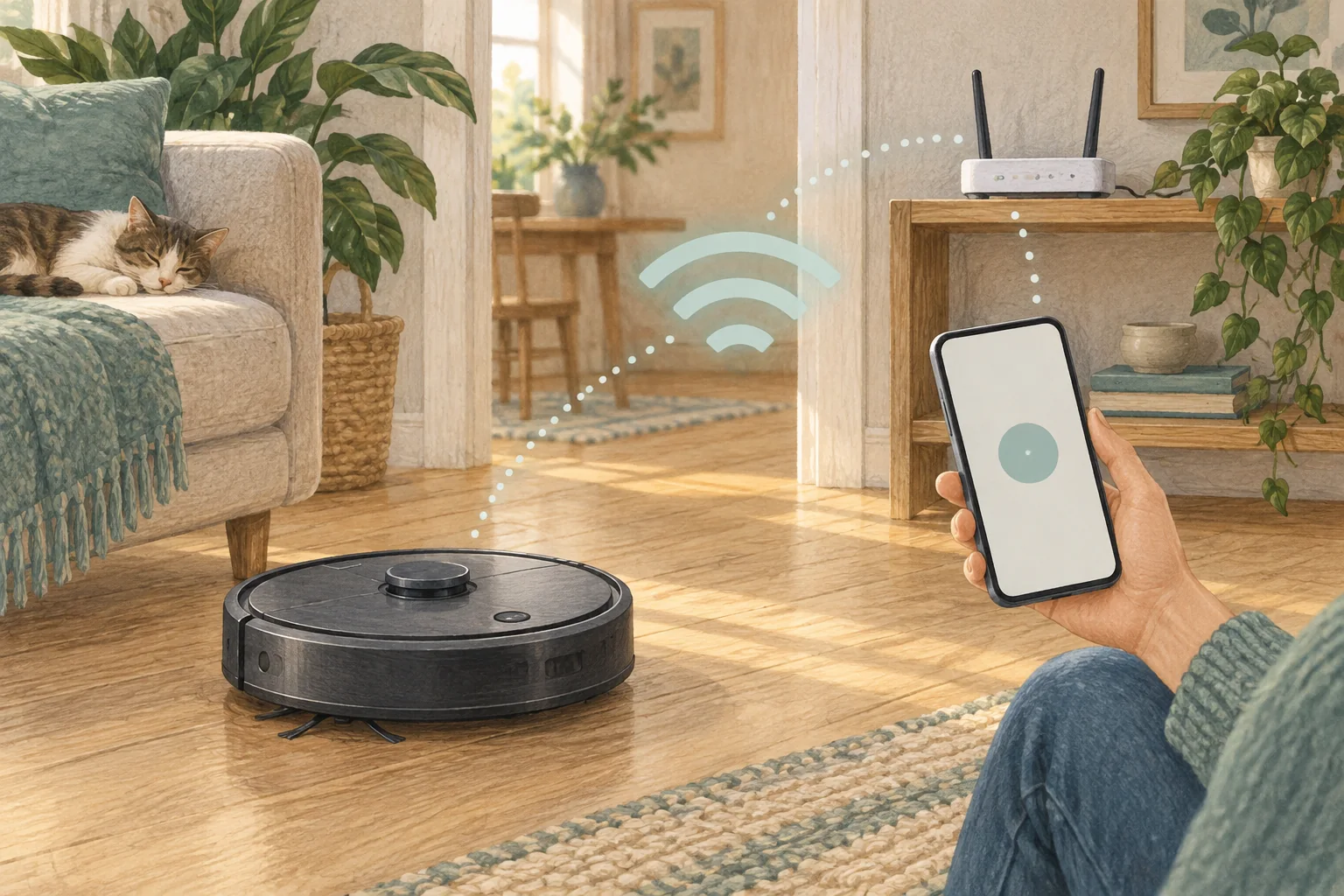
Discovery depends on the correct app, model selection and phone permissions as well as Wi-Fi. Work through those details before deciding the robot is faulty.
Table of Contents
Start with these checks
- Verify the app publisher and supported model in the manual.
- Allow the specific Bluetooth or local-network permissions the setup requires.
- Put the robot into its documented pairing mode and keep the phone nearby.
What this looks like at home
A similarly named app from another brand will not pair simply because both devices are robot vacuums.
Check the exact model’s network requirements
| Check | What matters |
|---|---|
| Band support | Read the model requirement before changing router settings. |
| Coverage | Check reception where the dock normally sits. |
| Permissions | Allow only the official app permissions needed for setup. |
A mistake to avoid
Avoid unofficial apps or firmware offered as shortcuts around normal pairing.
Buy a part only after identifying the cause
Check the exact model and part reference before buying. If cleaning resolves the problem, a replacement may be unnecessary.
Browse Amazon UK results for wifi range extender. These are search results, not a verified recommendation for your particular machine.
What the result tells you
If discovery repeatedly fails at the same step, capture that screen and the exact model selection. Do not include passwords or account security codes when sharing the evidence with support.
Related guidance
- How to Connect Your Robot Vacuum to WiFi in 2026: A Step-by-Step Guide
- Robot Vacuum Maintenance Tips UK: Keep Your Cleaner Running Smoothly
Sources and scope
Checked on 9 September 2026. Manufacturer instructions apply to the models they name; use your own exact manual for button sequences, removable parts and cleaning permissions. Product specifications are advertised claims. Examples illustrate decisions and are not hands-on test results.