
Affiliate disclosure: this article contains paid links. As an Amazon Associate I earn from qualifying purchases.
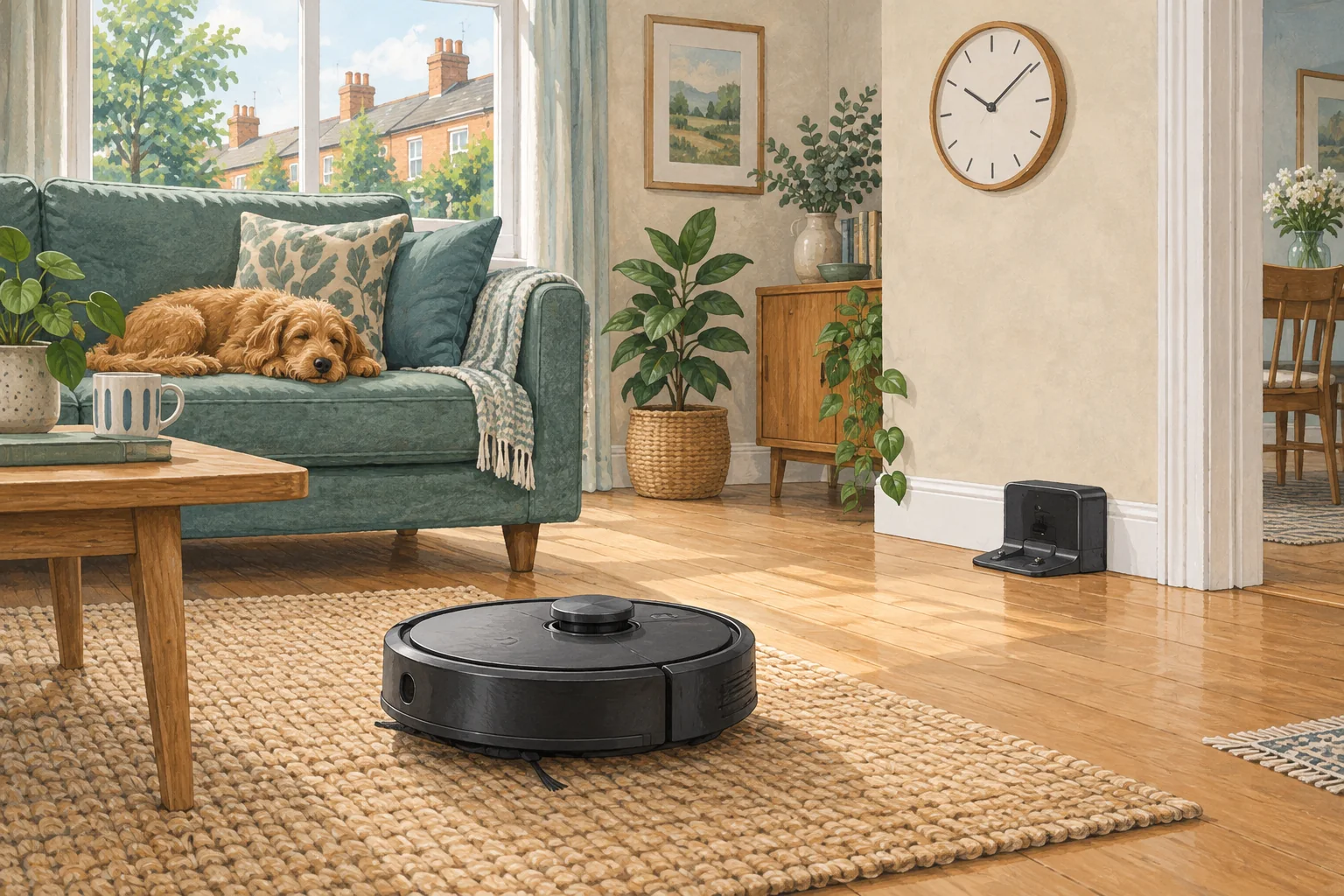
A moved clock, timezone setting or duplicate routine can shift a cleaning job. Compare the time shown inside the app with the actual local time.
Table of Contents
Start with these checks
- Inspect the app timezone and any device time settings the model exposes.
- Look for duplicate schedules in the robot app and connected smart-home service.
- Edit one routine and verify the next planned run before changing the rest.
What this looks like at home
A job that shifts by one hour around the UK clock change points towards time handling rather than a random motor start.
Follow the whole job, including the return
| Check | What matters |
|---|---|
| Start | Correct day, local time, charge and selected rooms. |
| During cleaning | Open routes and suitable debris. |
| Finish | Successful return and expected dock activity. |
A mistake to avoid
Do not assume deleting an Alexa routine also deletes the robot app's own schedule.
Buy a part only after identifying the cause
Check the exact model and part reference before buying. If cleaning resolves the problem, a replacement may be unnecessary.
Browse Amazon UK results for cable clips. These are search results, not a verified recommendation for your particular machine.
What the result tells you
Check the next scheduled occurrence after correcting the timezone or duplicate automation. One successful manual clean does not verify that the recurring trigger is now set to the intended local time.
Related guidance
- Robot Vacuum Scheduling: The Ultimate Guide for a Spotlessly Clean Home
- Robot Vacuum Maintenance Tips UK: Keep Your Cleaner Running Smoothly
Sources and scope
Checked on 9 September 2026. Manufacturer instructions apply to the models they name; use your own exact manual for button sequences, removable parts and cleaning permissions. Product specifications are advertised claims. Examples illustrate decisions and are not hands-on test results.