
Table of Contents
Introduction: Why Your Robot Vacuum App is Key
Robot vacuums have come a long way. No longer are they simply ‘bump and go’ devices. In 2026, the true power of a robot vacuum resides within its companion app. The app isn’t just a remote control; it’s the command centre for a truly customised and automated cleaning experience. From precise scheduling and zoned cleaning to advanced features like object recognition and multi-floor mapping, the app unlocks the full potential of your cleaning companion. App features have evolved drastically over the past few years, moving from basic start/stop functionality to incredibly detailed control over every aspect of your robot’s behaviour. This guide will walk you through everything you need to know to master your robot vacuum app and enjoy a consistently clean home.
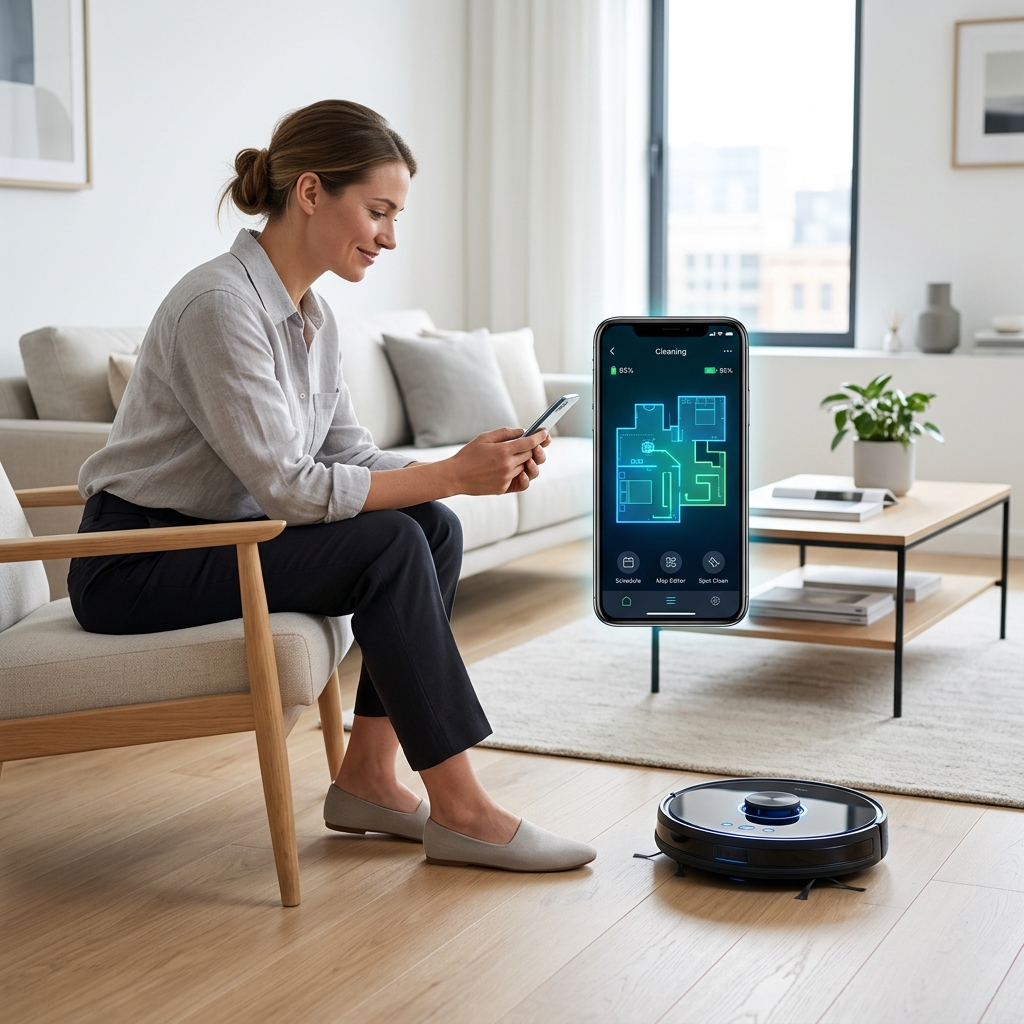
Getting Started: Initial Setup & Connection
The initial setup is crucial for a smooth experience. Here’s a step-by-step guide:
- Download the App: Search for your robot vacuum’s app on the App Store (iOS) or Google Play Store (Android). Popular options include the iRobot Home App, Shark Clean App, Ecovacs Home App, Roborock App, and Dreamehome App.
- Create an Account: Follow the in-app instructions to create an account. You’ll typically need an email address and to create a password.
- Connect to Wi-Fi: This is often the trickiest part. Ensure your robot vacuum is near your router during setup. The app will guide you through the Wi-Fi connection process, usually involving putting the robot into pairing mode. You’ll need your Wi-Fi network name and password. Important: Most robot vacuums only support 2.4GHz Wi-Fi networks. Check your router settings if you’re having trouble.
- Pair the Device: The app will search for your robot vacuum. Once found, follow the prompts to complete the pairing process.
Troubleshooting Connection Issues:
- Check Wi-Fi Signal: Ensure a strong Wi-Fi signal reaches the robot vacuum’s location.
- Restart Router & Robot: A simple restart can often resolve connectivity problems.
- Factory Reset: As a last resort, consult your robot vacuum’s manual for instructions on performing a factory reset.
- App Permissions: Ensure the app has the necessary permissions (location, local network access) on your smartphone.
Navigating the App Interface: A Feature Breakdown
While app interfaces vary slightly between brands, most share a common structure. Here’s a breakdown of the key sections:
- Cleaning Modes: Allows you to select different cleaning modes (detailed in the next section).
- Map Management: Displays your home’s map. Here you can create virtual boundaries and edit saved maps.
- Scheduling: Lets you schedule cleaning sessions based on time and day.
- Settings: Contains options for adjusting robot vacuum settings such as suction power, water tank levels (for mopping models), and voice assistant integration.
- Diagnostics: Displays error messages, maintenance reminders, and robot vacuum status.
Most apps feature a prominent “Start/Pause” button on the main screen for instant cleaning control. You’ll also usually find a visual representation of the robot’s current cleaning progress within the app.
Cleaning Modes Explained: Choosing the Right One
Selecting the right cleaning mode is vital for optimal performance. Here’s a look at common options:
- Auto: The standard cleaning mode, suitable for general cleaning of most floor types.
- Spot Cleaning: Focuses cleaning on a small, designated area (typically around 1.5m x 1.5m). Ideal for spills or concentrated messes.
- Edge Cleaning: Specifically targets edges and corners, ensuring thorough cleaning along walls and furniture.
- Max Power/Boost: Increases suction power for deep cleaning on carpets or particularly dirty areas. Uses more battery.
- Quiet/Eco Mode: Reduces suction power and noise levels for quieter operation. Suitable for cleaning during sensitive times.
- Zoned Cleaning: Allows you to designate specific areas for cleaning, either as one-time cleans or as part of a schedule. This is a very popular feature for 2026 models.
Floor Type Considerations:
- Hard Floors: Auto or Eco Mode is often sufficient. For stubborn stains, use Max Power.
- Carpets: Use Auto or Max Power for deeper cleaning. Edge cleaning is useful for carpets along walls.
- Mixed Flooring: Auto mode generally handles transitions well. Zoned cleaning allows you to specify higher power for carpets.
Mapping Your Home: Creating & Editing Virtual Boundaries
Mapping is a cornerstone of modern robot vacuum functionality. The initial mapping run allows the robot to create a digital floorplan of your home.
- Initiate Mapping: Most apps have a “Map My Home” or similar option. Ensure the area is clear of obstacles.
- Save the Map: Once the mapping is complete, the app will prompt you to save the map.
- Virtual Walls/No-Go Zones: These allow you to create invisible boundaries within the app, preventing the robot from entering specific areas (e.g., around delicate furniture, pet food bowls, or children’s play areas).
- Restricted Areas: Similar to no-go zones, but can be temporary or scheduled.
Multi-Floor Mapping: Many 2026 models support multi-floor mapping. You’ll typically need to manually move the robot to each floor and initiate a new mapping run. The app will allow you to save separate maps for each floor.
Scheduling Cleanings: Automating Your Robot Vacuum
Scheduling is what truly makes a robot vacuum convenient. Most apps offer flexible scheduling options:
- Time-Based Scheduling: Set specific times and days for cleaning.
- Recurring Schedules: Set up repeating cleaning schedules (e.g., every Monday and Wednesday at 10:00 AM).
- Zoned Scheduling: Schedule specific areas to be cleaned on different days or at different times.
- Intelligent Scheduling: Some apps learn your cleaning habits and suggest optimal schedules based on your usage patterns.
Pro Tip: Schedule cleanings for times when you’re away from home to avoid disruption.
Advanced App Features (2026): What’s New?
2026 sees some exciting advancements in robot vacuum app features:
- Object Recognition: Many models now feature object recognition, allowing the robot to identify and avoid obstacles like shoes, cables, and pet waste.
- Voice Control Integration: Seamless integration with voice assistants like Amazon Alexa and Google Assistant. Control your robot vacuum with voice commands.
- Remote Monitoring (with Camera): Some models include built-in cameras, allowing you to remotely monitor your home via the app.
- Firmware Updates: The app allows for over-the-air firmware updates, ensuring your robot vacuum has the latest features and security patches.
- Personalised Cleaning Plans: Apps can now create personalised cleaning plans based on your home’s layout, floor types, and cleaning preferences.
Troubleshooting Common App Issues
Here are solutions to common app problems:
- App Crashes: Force close the app and restart it. Clear the app’s cache (Android). Update the app to the latest version.
- Connectivity Issues: Refer to the “Getting Started” section for troubleshooting tips.
- Map Errors: Delete the existing map and re-map your home.
- Error Messages: Consult the app’s help section or the manufacturer’s website for specific error code explanations.
Manufacturer Support Resources:
- iRobot: https://www.irobot.com/support
- Shark: https://www.sharkclean.com/support
- Ecovacs: https://www.ecovacs.com/support
- Roborock: https://support.roborock.com/
- Dreame: https://www.dreame.tech/support
Maintaining Your App & Robot Vacuum
Keep your app and robot vacuum performing optimally with these tips:
- Update the App: Regularly update the app to benefit from new features and bug fixes.
- Keep Firmware Updated: Install firmware updates as they become available.
- Manage Multiple Robots: Some apps support managing multiple robots within a single account.
- Clear the App Cache: Periodically clear the app’s cache to free up storage space and improve performance.
Comparison Table (2026)
| Product Name | Price (GBP) | Key App Features | Mapping Capabilities |
|---|---|---|---|
| iRobot Roomba j7+ | £799.99 | Object Recognition, Smart Mapping, Voice Control | Precise Navigation, Multi-Floor Mapping |
| Shark AI Ultra Robot Vacuum | £649.99 | AI Laser Navigation, Multi-Surface Cleaning, Voice Control | Room Select Mapping, No-Go Zones |
| Ecovacs Deebot X2 Omni | £1199.99 | AIVI 3.0 Object Avoidance, TrueMapping 4.0, Auto Emptying | Advanced Mapping, Multi-Floor Mapping |
| Roborock S8 Pro Ultra | £1299.99 | ReactiveAI 3.0 Obstacle Avoidance, VibraRise 2.0 Mopping, Docking Station | 3D Mapping, No-Go Zones, Multi-Floor Mapping |
| DreameBot L20s Ultra | £999.99 | Obstacle Avoidance, Dual-Rotating Mopping Pads, Auto Emptying | LiDAR Navigation, Virtual Boundaries |
FAQ
Q: My robot vacuum keeps disconnecting from Wi-Fi. What can I do?
Ensure your router is broadcasting a 2.4GHz signal. Move the robot closer to the router during setup. Restart both the robot and the router. Check for interference from other devices.
Q: Can I control my robot vacuum when I’m away from home?
Yes! Once connected to Wi-Fi, you can control your robot vacuum remotely via the app from anywhere with an internet connection.
Q: How do I clean the sensors on my robot vacuum?
Refer to your robot vacuum’s manual for specific cleaning instructions. Typically, you can use a dry, soft cloth to gently wipe the sensors.
Q: What does “Virtual Boundary” actually do?
A Virtual Boundary is an invisible line you draw in the app that prevents the robot vacuum from entering a designated area. This is useful for protecting fragile items or keeping the robot out of certain rooms.
Q: Is it safe to use the remote monitoring feature (with camera)?
Robot vacuum cameras are often designed with privacy in mind, but it’s important to review the manufacturer’s privacy policy and understand how your data is being handled. Ensure you have a strong password and enable two-factor authentication where available.