
Affiliate disclosure: this article contains paid links. As an Amazon Associate I earn from qualifying purchases.
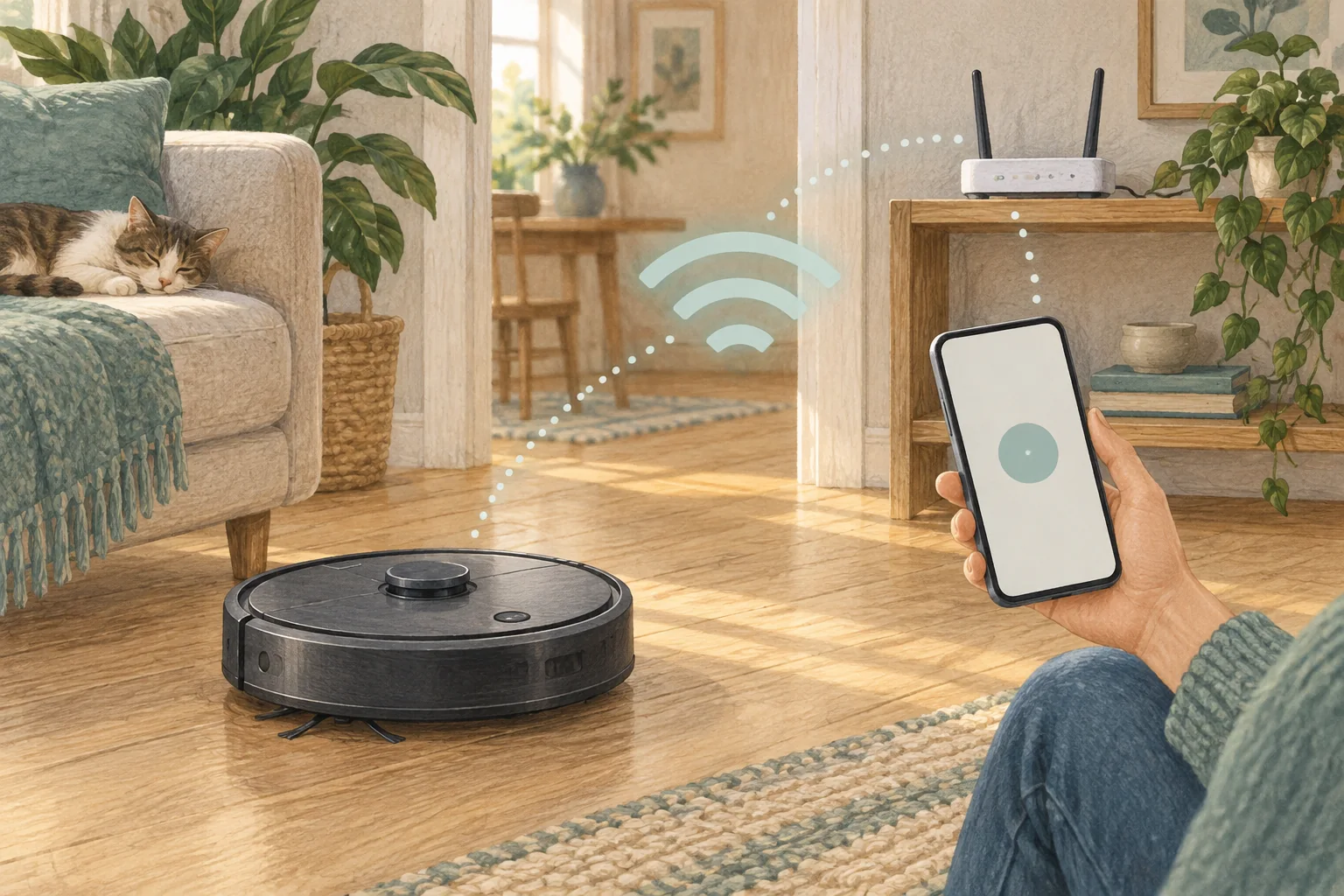
X10 Pro Omni's listing specifies 2.4 GHz Wi-Fi. Pair it using the exact model instructions and check coverage where the station will actually live.
Table of Contents
A practical checklist
- Confirm the phone is on the intended compatible home network during setup.
- Allow the official app permissions needed for discovery.
- Use the documented Wi-Fi reset only if ordinary pairing fails.
What this looks like at home
Pairing successfully beside the router does not prove stable coverage behind a hallway cupboard where you plan to put the dock.
Check the exact model’s network requirements
| Check | What matters |
|---|---|
| Band support | Read the model requirement before changing router settings. |
| Coverage | Check reception where the dock normally sits. |
| Permissions | Allow only the official app permissions needed for setup. |
A mistake to avoid
Do not apply a different Eufy model's band support or button sequence to X10.
The exact model discussed
Eufy X10 Pro Omni
A mixed-floor option combining spinning mops, automatic dock care and camera-assisted obstacle recognition.
Check Eufy X10 Pro Omni on Amazon UK. Confirm the selected UK variant, seller, contents and current price.
Related guidance
- How to Connect Your Robot Vacuum to WiFi in 2026: A Step-by-Step Guide
- Robot Vacuum Maintenance Tips UK: Keep Your Cleaner Running Smoothly
Sources and scope
Checked on 9 September 2026. Manufacturer instructions apply to the models they name; use your own exact manual for button sequences, removable parts and cleaning permissions. Product specifications are advertised claims. Examples illustrate decisions and are not hands-on test results.