
Affiliate disclosure: this article contains paid links. As an Amazon Associate I earn from qualifying purchases.
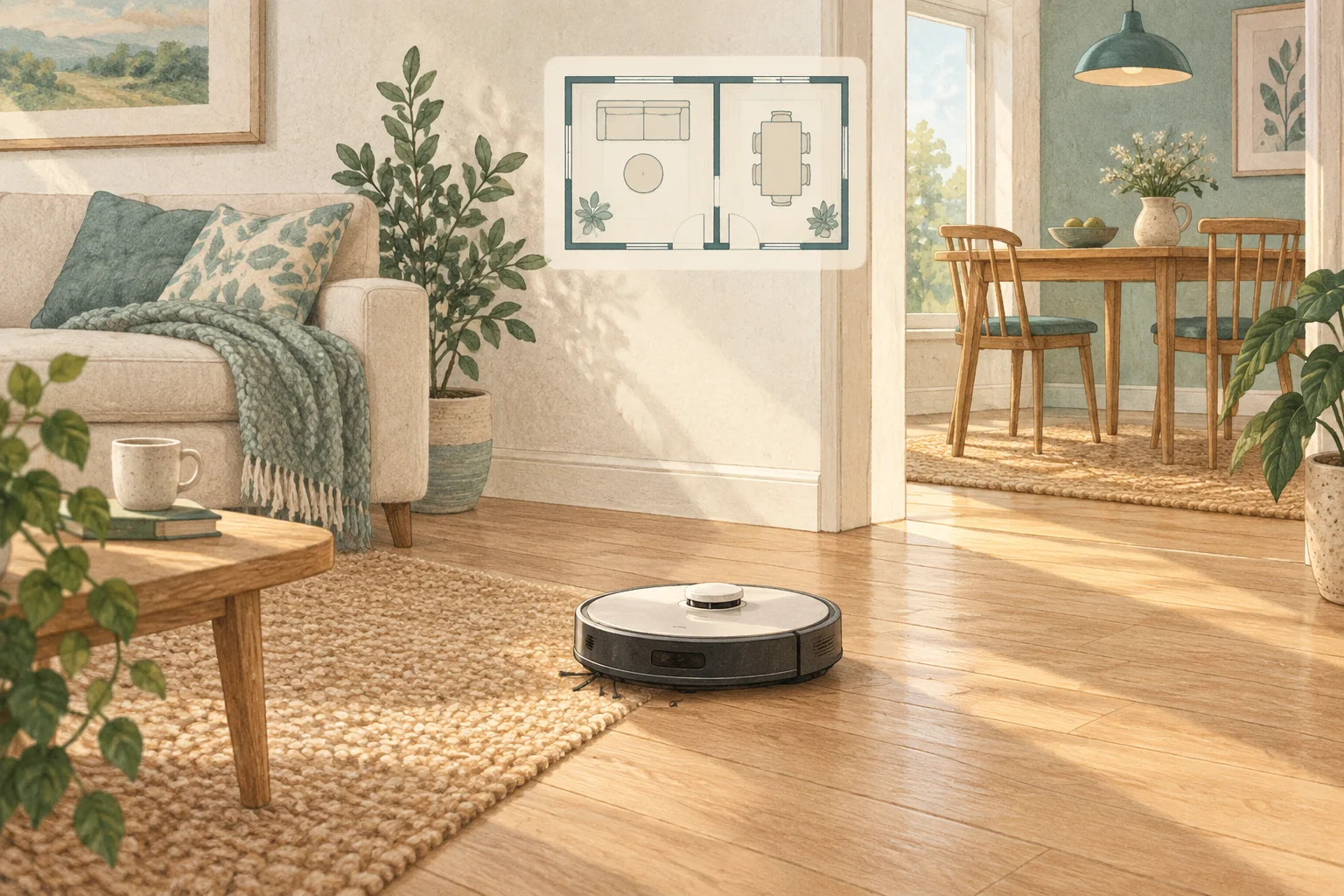
Renamed, divided or restored rooms can leave old routines pointing at unexpected areas. Compare a manual room command with the saved schedule.
Table of Contents
Start with these checks
- Launch one room directly from the map and verify where the robot goes.
- Check every room selection inside the recurring routine after map edits.
- Recreate only the affected routine if its references no longer match the intended rooms.
What this looks like at home
Renaming a study to nursery does not prove that a previously saved routine now targets the intended area.
Give the robot a consistent starting point
| Check | What matters |
|---|---|
| Starting point | Use the model’s recommended localisation procedure. |
| Selected map | Confirm the correct floor and room selection. |
| Physical route | Check doors, furniture and the return to the dock. |
A mistake to avoid
Do not delete all floor maps when only one old routine is wrong.
Buy a part only after identifying the cause
Check the exact model and part reference before buying. If cleaning resolves the problem, a replacement may be unnecessary.
Browse Amazon UK results for non marking door stop. These are search results, not a verified recommendation for your particular machine.
What the result tells you
Save screenshots of the current room divisions and the affected routine. If direct room commands work while an old routine does not, concentrate the repair on that routine instead of erasing the entire map.
Related guidance
- How to Map Your Home for a Robot Vacuum: A 2026 Guide
- Robot Vacuum Maintenance Tips UK: Keep Your Cleaner Running Smoothly
Sources and scope
Checked on 9 September 2026. Manufacturer instructions apply to the models they name; use your own exact manual for button sequences, removable parts and cleaning permissions. Product specifications are advertised claims. Examples illustrate decisions and are not hands-on test results.